AI Video Highlights Generator for Events: How It Finds the Moments That Matter
Finding highlights is the slowest part of event video. Someone has to watch hours of sessions to find the 30 seconds worth sharing, and by the time they do, the event is over. An AI video highlights generator reads the transcript, the audio and the video for you, ranks the strongest moments, and leaves your team to choose. For events, the best ones work during the event, not after it.
What an AI video highlights generator does
At its simplest, a highlights generator takes long video and returns short, shareable moments. The difference between tools is what they read and when they read it.
Adoption is already high among teams that chose these tools. Goldcast's 2026 benchmark reports that its customers generated 365,253 clips in 2025, and 97.8% were made by AI. That is vendor platform data from webinar-focused teams, so it shows where adopters land rather than the whole market.
How AI finds highlights in event video
The transcript
Speech is the richest signal at a conference. Topic changes in the transcript mark where one idea ends and the next begins, and complete, quotable sentences make the best short clips.
The audio
Applause, laughter and silence are strong markers. Applause often closes a session or follows a line that landed with the room.
The video
Speaker changes, walk-ons and stage changes help mark where sessions start and end, and where the camera should follow the speaker in a vertical crop.
The agenda
Events have one signal most video doesn't: a runsheet. Matching moments to the agenda tells the system which session, speaker and sponsor each highlight belongs to.
What AI can and can't judge
AI is good at finding candidates: complete sentences, clear topic shifts, moments the room reacted to. It is less reliable at judging context, such as whether a joke works out of the room, or whether a sponsor would want a clip shared.
That is why the strongest workflows keep a person in the loop. ISE Europe makes the same point about post-production: automating part of the edit doesn't mean automating the editor. In Eventcut, AI suggests clips; nothing is exported or published until someone on your team does it.
Highlights for events: during, not after
Most highlight generators start from a finished recording, so highlights arrive after the event. For events, timing changes the value: a highlight posted while the conference is still running joins the conversation.
How Eventcut generates highlights from a live event
- Topics as people speak. The transcript is written live, and topics are found and named as the session runs.
- Sessions from applause and speaker changes. AI uses the transcript, audio waveform and video frames to find where each session starts and ends, and names it from your runsheet.
- Clip suggestions as each session ends. Suggested clips appear on the Clips tab, based on the topics in the transcript.
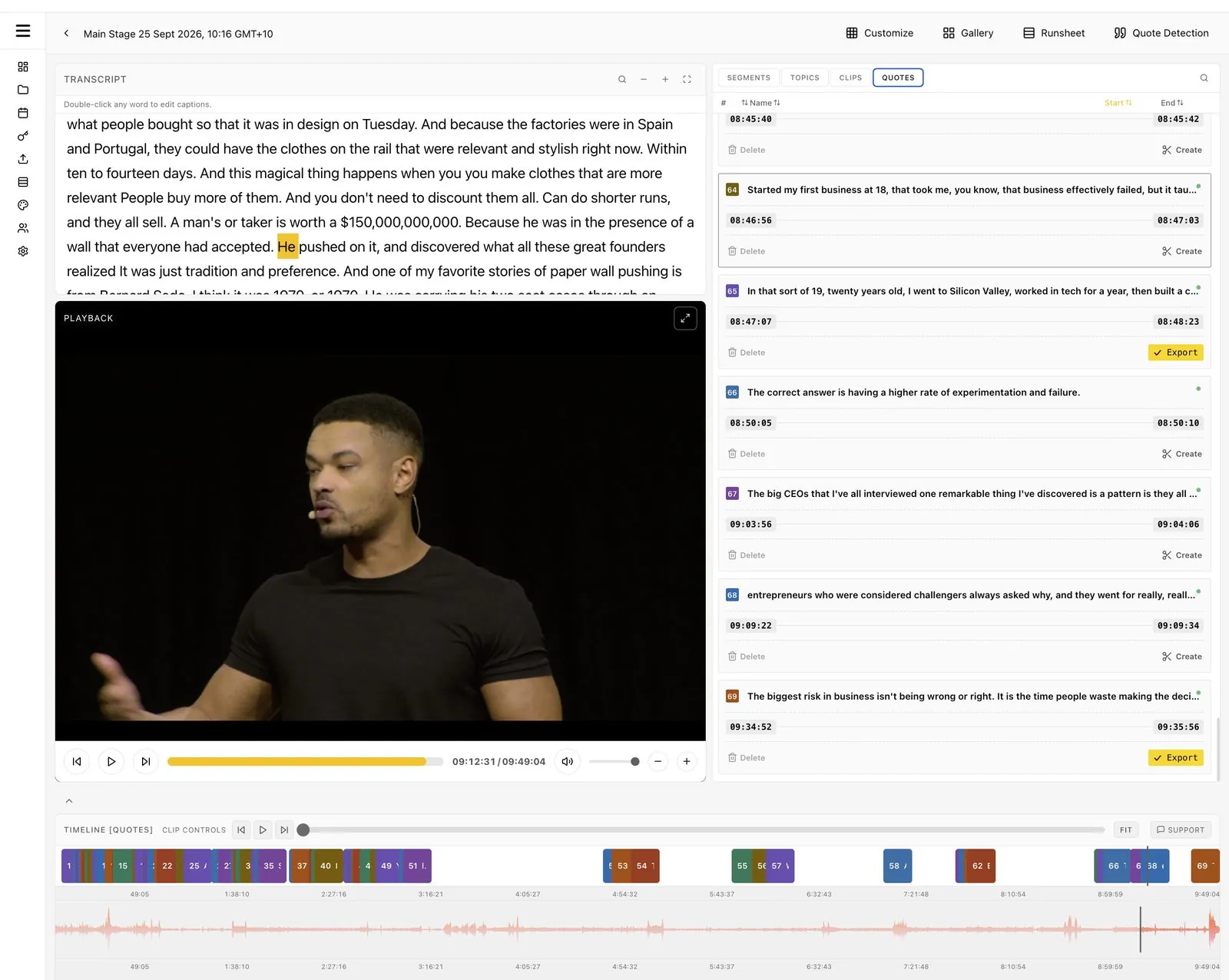
- Quote Detection across a full day. One click scans the whole recording, even a full day, and ranks the strongest quotable lines. Generate More adds suggestions; Auto-Quote does the same within one segment, such as a keynote.
- Your own picks from the live transcript. Select the words you want and the clip is cut at those points.
- Ready to post. Clips under six minutes are reframed to 9:16 and 1:1, with your Brand Kit and caption style.
A same-day highlights workflow
- During each session, cut one clip from the live transcript when a speaker lands a strong line.
- As each session ends, review the suggested clips and export the best two in vertical and square.
- At the end of each day, run Quote Detection across the day and pick five quotes for tomorrow's posts.
- After the event, combine the top quotes and clips into a recap, or hand them to your editor for the sizzle reel.
Session videos are ready within minutes of each talk ending: 10 minutes from session end to published clip in our measurements.
Questions to ask an AI highlights generator
- Does it work during the event, or only on recordings?
- What does it read: transcript only, or audio and video too?
- Can it use my agenda to name sessions and speakers?
- Can my team choose and approve before anything is published?
- Does it produce full sessions as well as highlights?
For a wider comparison, read live stream clipping software for events and our Restream Clips comparison.
Try it on your next event
Run Eventcut on one room with the Pro free trial, or see Enterprise for multi-room programs. For how highlights feed your reporting, read content yield as the metric that lands, or start with the guide to post-event video turnaround.