Automatic Clips From a vMix or OBS Live Stream: A Setup Guide for Events
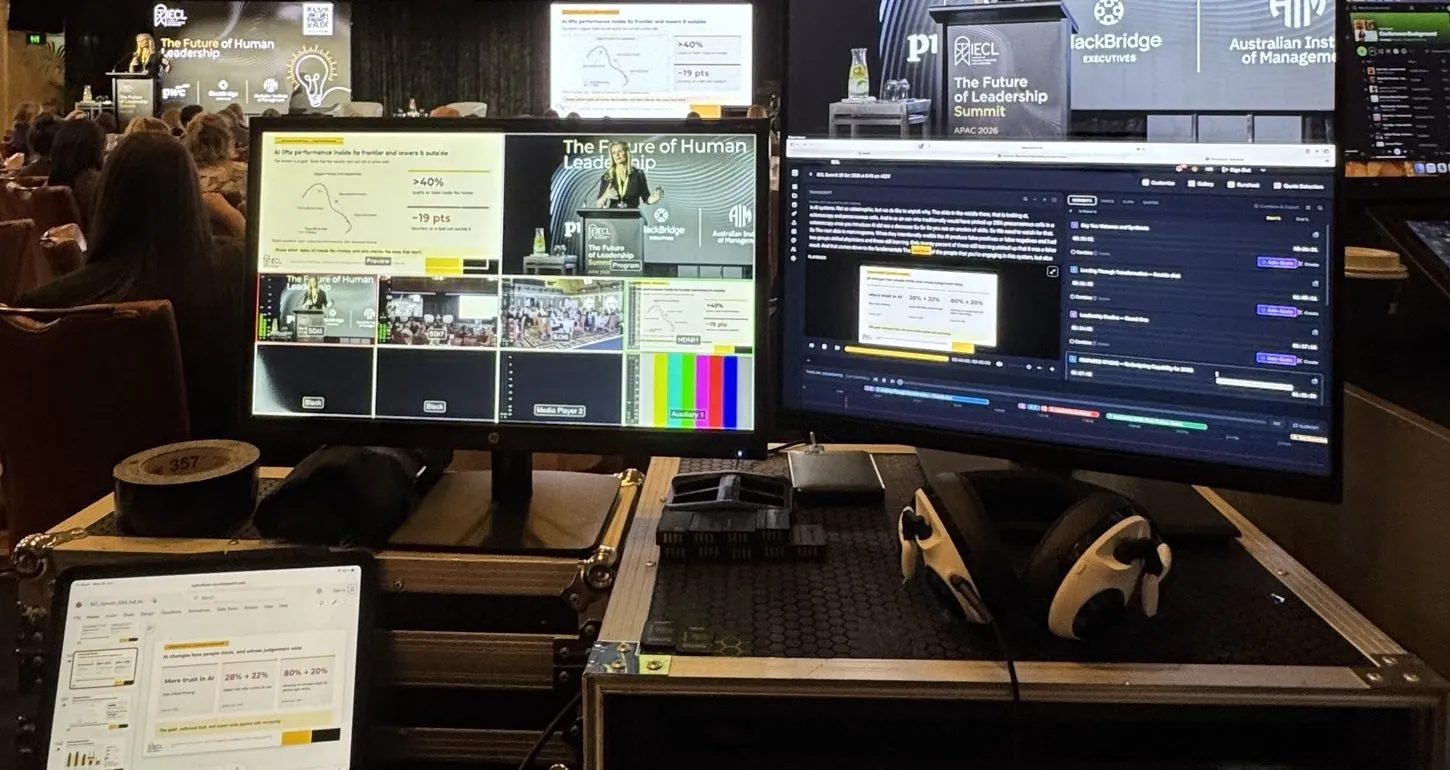
If your event already runs through vMix or OBS, you are one setting away from automatic clips. Point the encoder at an Eventcut stream key over RTMPS and every session is transcribed, found, named and clipped while the room runs. This guide covers the encoder settings, the stream key, the runsheet and the branding, so your AV team can set it up in an afternoon.
What you need
- An encoder: OBS Studio or vMix on a laptop or production PC, or a hardware encoder such as Blackmagic Web Presenter, AJA HELO or NewTek.
- A clean program feed: the same mix you send to the screens or the live stream.
- An internet connection with enough upload for your bitrate.
- An Eventcut account. The Pro trial gives you one stream key and 6 hours of streaming or uploading for 14 days.
Nothing is installed on the encoder. Eventcut runs in a web browser.
Step 1: Create a stream key for the room
In Eventcut, open Stream Keys and create one key per room or stage. Rename each key after its room (Stage 1, Breakout A), so projects are easy to find later.
Click Ingest Info on the key to see the server URL and the stream key. You will paste both into your encoder.
Step 2: Get automatic clips from an OBS live stream
- In OBS, open Settings, Stream.
- Set Service to Custom.
- Paste the Eventcut server URL and stream key.
- Under Settings, Output, use the recommended settings below.
- Click Start Streaming.
A project is created in Eventcut as soon as the stream starts, named with the stream key prefix, date and time.
Step 3: Get automatic clips from a vMix live stream
- In vMix, open the streaming settings.
- Choose a custom RTMP destination.
- Paste the Eventcut server URL and stream key.
- Match the video and audio settings below.
- Start the stream.
If vMix is already streaming to another platform, check whether your edition lets you add a second destination, so the same program goes to both.
Recommended encoder settings
| Setting | Recommended |
|---|---|
| Protocol | RTMPS (SRT on Enterprise) |
| Video codec | H.264 |
| Resolution | 1920 × 1080 |
| Frame rate | 25 to 60 fps |
| Bitrate | Up to 8 Mbps |
| Keyframe interval | 2 seconds |
| Audio | AAC, 48 kHz, stereo |
Every stream key has a playback URL. Paste it into a browser to check what is arriving before doors open.
Step 4: Load the runsheet
Go to Runsheets, choose the stream key and upload your agenda as a CSV; an export from your event management tool is fine. Eventcut tidies the rows for you to confirm.
Remove anything that isn't a recorded session, such as arrivals, breaks and networking. On Enterprise, include speaker emails so each session can go to its presenter in one click.
Step 5: Set your branding
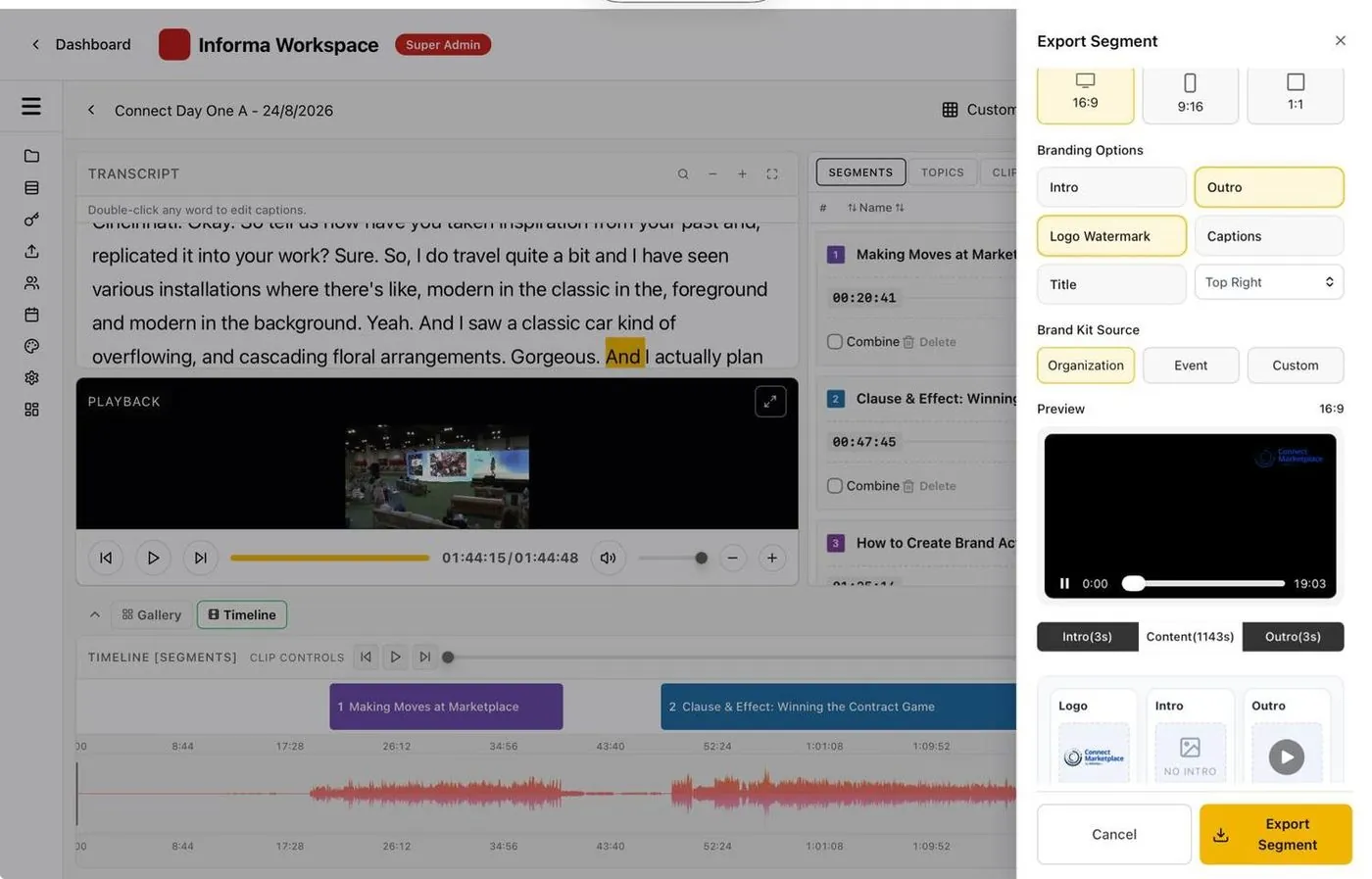
Add your logo, intro, outro and fonts to the Brand Kit, and set your caption style once. Branding is applied with one click at export and can be changed for one event or one clip.
What happens while the room runs
- Transcript: written as people speak. Double-click any word to fix a name before export.
- Sessions: found from the transcript, audio waveform and video frames, using applause and speaker changes, then named from the runsheet.
- Clips: select words in the live transcript to cut one while the speaker is talking; more are suggested as each session ends.
- Formats: clips under six minutes are reframed to 9:16 and 1:1, following the speaker.
- Delivery: finished videos go to YouTube, Google Drive, Wowza or JW Player in one click, or out through a view-only link.
Session videos are ready within minutes of each talk ending: 10 minutes from session end to published clip in our measurements.
Troubleshooting
- Stream not arriving: check the server URL and key, then open the key's playback URL in a browser.
- Key still set up on equipment you no longer control: click Reset on the key to issue a new one, or disable it.
- Stream dropped mid-session: upload the local recording as a backup; it goes through the same process as a live stream.
- Several rooms: use one stream key per room and monitor every project at once.
Next steps
Run it on one room first with the Eventcut Pro free trial. For several rooms, SRT and hardware device licensing, see the technical specs on the Enterprise page. Read how to get same-day video without an edit team, or the guide to post-event video turnaround.